Everything you tap, everything you hear, in the order it happens.
This guide sets the app up, walks the five tabs, then flies a complete connected flight
— United 598 from Houston to Minneapolis — one radio call at a time. Every
transmission on this page is the app’s own output, produced by running the ATC engine
through the flight; nothing is written for the brochure. It ends with
Web Remote, for flying the same radio from a browser.
53 transmissions14 stagesFree in Mock ModeNo account needed
Callsign
United 598
From
KIAH · gate C12
To
KMSP · gate B44
Cruise
FL370
Arrival
KKILR
Approach
ILS 30L
Start here
What this guide covers
IFATC Companion talks you through a flight the way a controller would — you make your own
calls, the controller answers, and the position-based calls fire on their own at the right
moment. The fastest way to learn it is to fly one flight end to end, which is exactly what the
second half of this page is.
There are two ways to run the app, and the free one is the right place to start. Mock
Mode flies a complete scripted demo flight with no Infinite Flight, no network and no
subscription — every call, the weather flow and the map, on the phone in your hand. It is
the flight this guide walks through.
Mock Mode — free
Turn it on in Diagnostics → Mock Mode, or from Settings → Infinite Flight
Connection. Nothing else is required: no account, no login, no connection. Diagnostics also
gives you Advance Phase, to jump the demo forward, and Run Approach Sequence, which
flies a scripted arrival from fifty miles out.
Live Connected Mode
On the device running Infinite Flight, open Settings → General and enable
Infinite Flight Connect; note the IP address it shows. In IFATC Companion, put that
address and port 10112 into Settings → Infinite Flight Connection, or leave
auto-discover on and let it find the iPad itself. Both devices must be on the same
Wi‑Fi network. Live Connected Mode needs a subscription or the lifetime unlock; Infinite
Flight is sold separately.
Auto-discover, and why to leave it on
With auto-discover on, a saved address that stops answering is not a dead end — the app
re-searches the network and replaces it on its own, which is what happens after you change
Wi‑Fi networks and the iPad picks up a different IP. An address you typed yourself is
left alone; turn auto-discover off to pin it.
Worth setting before you fly
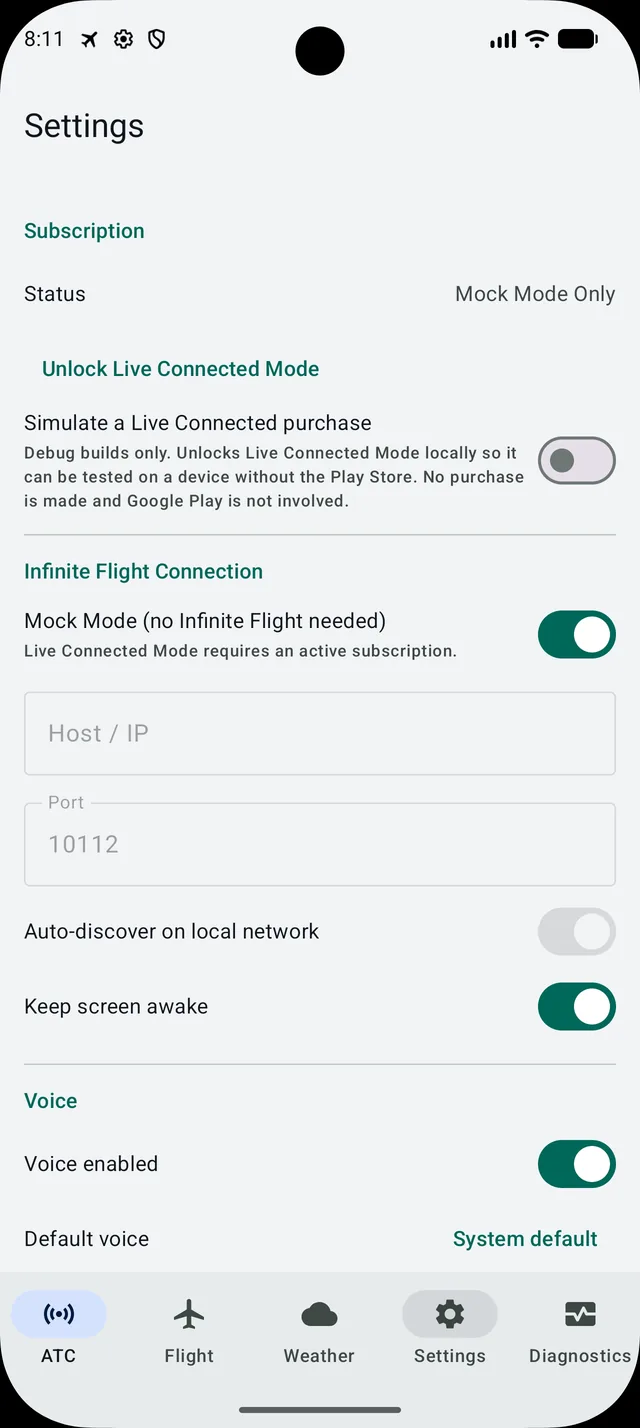
Connection. Subscription status, the Mock Mode toggle, Host/IP and Port, auto-discover,
and Keep screen awake — worth leaving on so the phone does not sleep mid-flight.
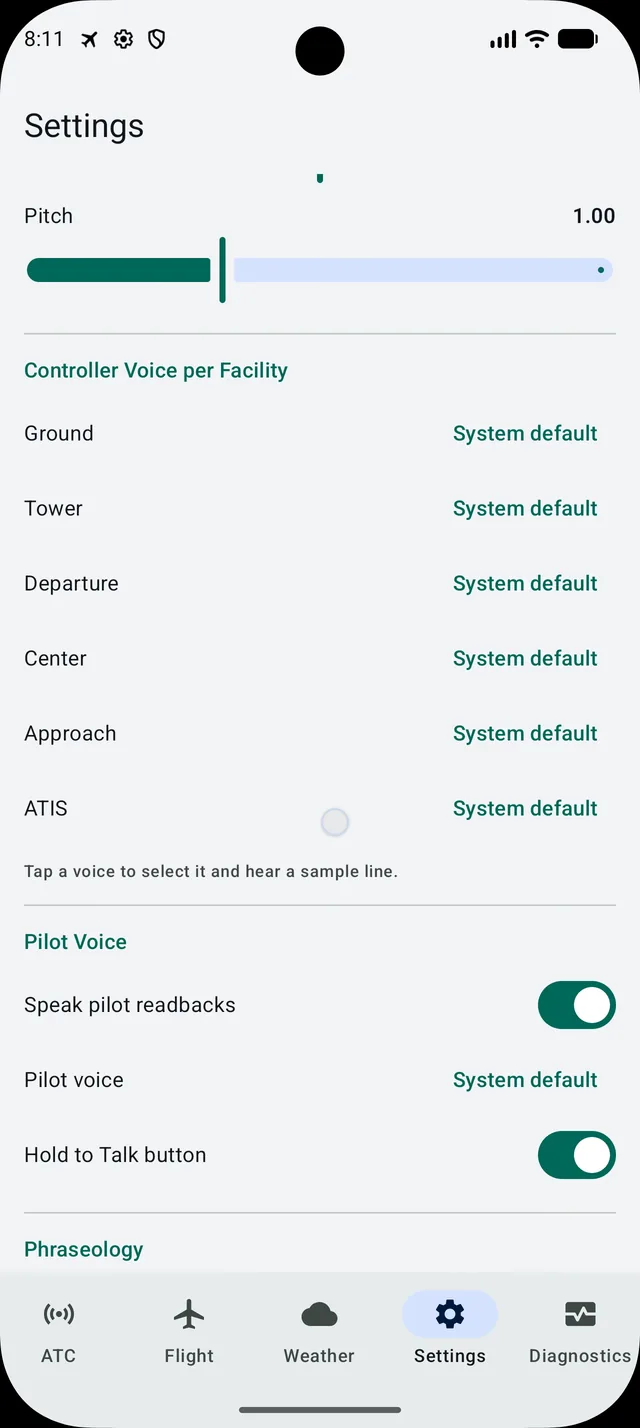
Voices. Volume, speech rate and pitch, then a separate voice for each controller
position and for ATIS. Tap one to hear a sample line. Your own pilot voice is set below, along
with the switches for spoken read-backs and the Hold to Talk button.
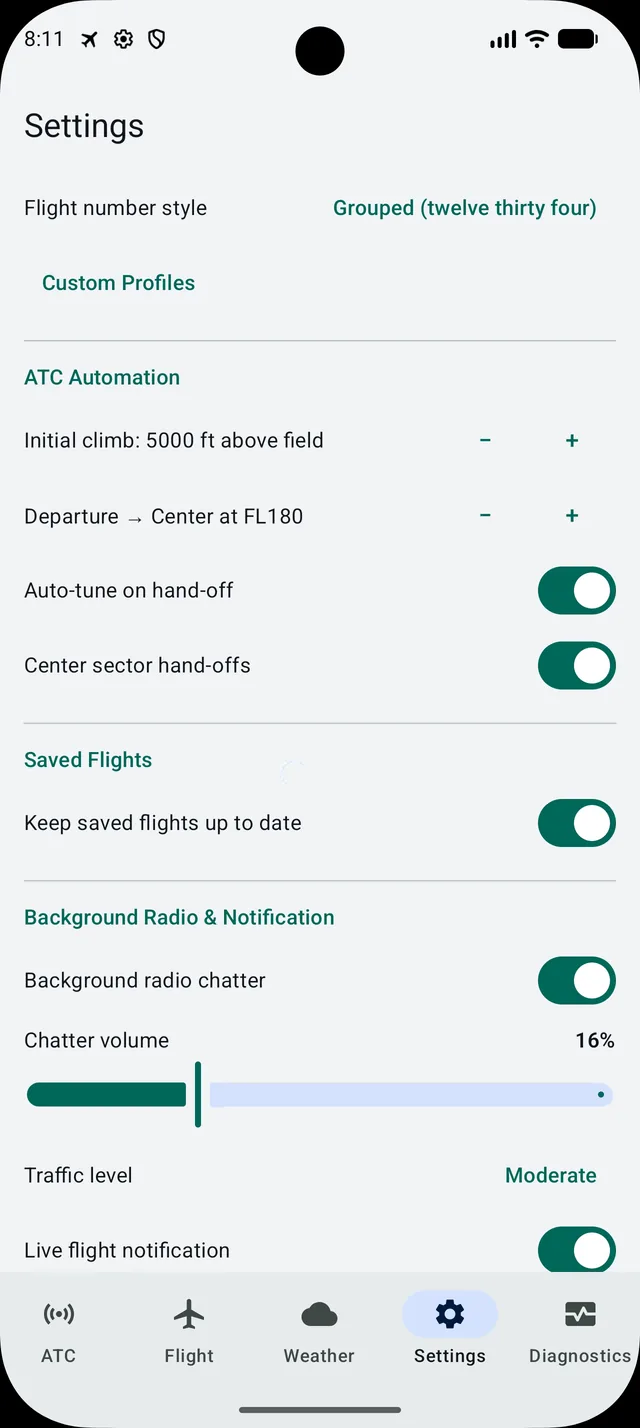
Phraseology and automation.Mode switches the whole app between FAA/US and ICAO.
Auto-tune on hand-off decides whether reading a hand-off back changes your frequency for
you. Center sector hand-offs names the real ARTCC you are in. Below: saved flights,
background chatter and the live flight notification.
A note on the screenshots
These are from the Android build. The iOS app is the same app — same features, same
screens, same phraseology, same order — translated to each platform’s own controls, so
everything in this guide applies to both.
2 · Layout
The five tabs
ATC
Where the flight happens: the flight-plan header, the latest call, the Tune Frequency card, your response buttons, the taxi map when it applies, and the running transcript.
Flight
Your live aircraft state and flight plan at a glance — position, altitude, heading, speed, vertical speed, phase and route.
Weather
METAR, TAF, PIREP and SIGMET, a route weather analysis, a ride-quality outlook, and the route map with its radar precipitation overlay.
Settings
Connection, voices, phraseology and units, custom phraseology profiles, weather options, automation, and your subscription.
Diagnostics
Connection status and troubleshooting, the multiplayer/ATC staffing read-out, the approach-sequencing detail, and the free Mock Mode toggle.
3 · Orientation
Reading the ATC screen
Four cards, top to bottom, and they always mean the same thing. Learn these and the rest of the
app follows.
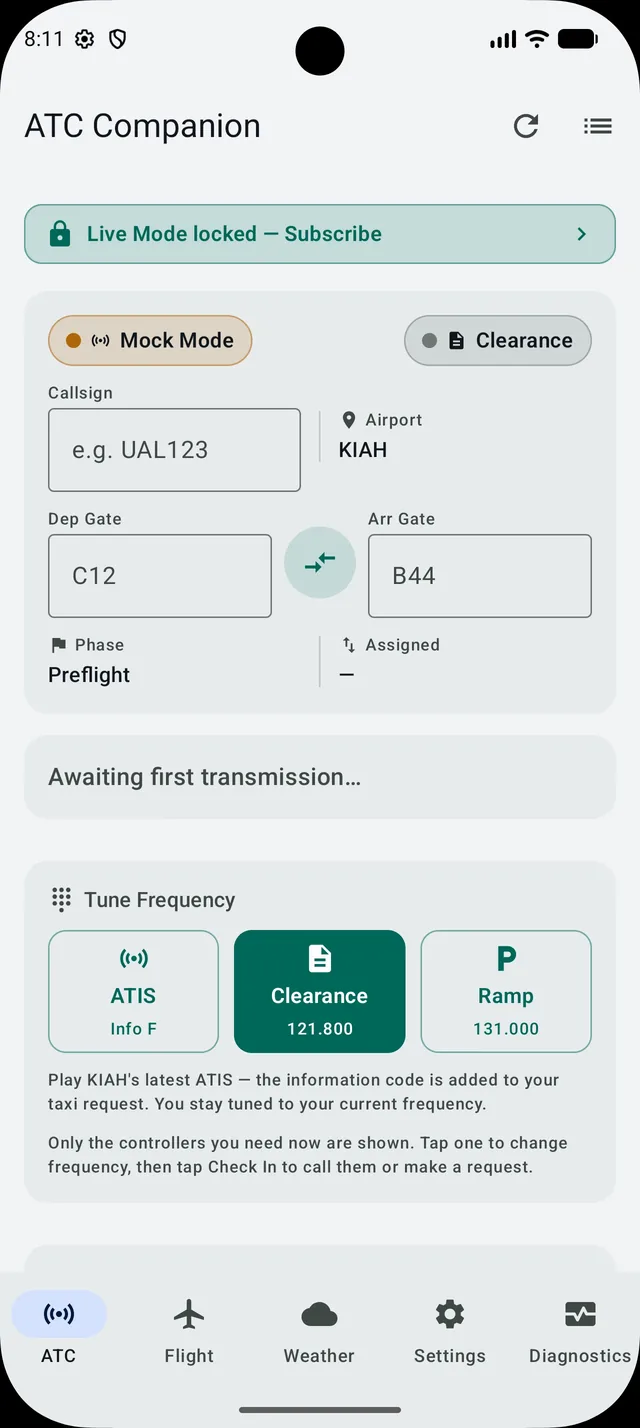
The flight header. Callsign, airport, departure and arrival gate, the current Phase, and the altitude you are Assigned. The Mock Mode pill on the left tells you the flight is simulated; the pill on the right is the controller you are working.
The latest call. The controller’s most recent transmission, in full, with a Replay button. Before the first call it reads “Awaiting first transmission…”
Tune Frequency. Only the controllers you actually need right now, with their frequencies — and, at the gate, ATIS with its information code. Tap one to change frequency yourself; once you start tuning by hand, the flow waits for you to make each change.
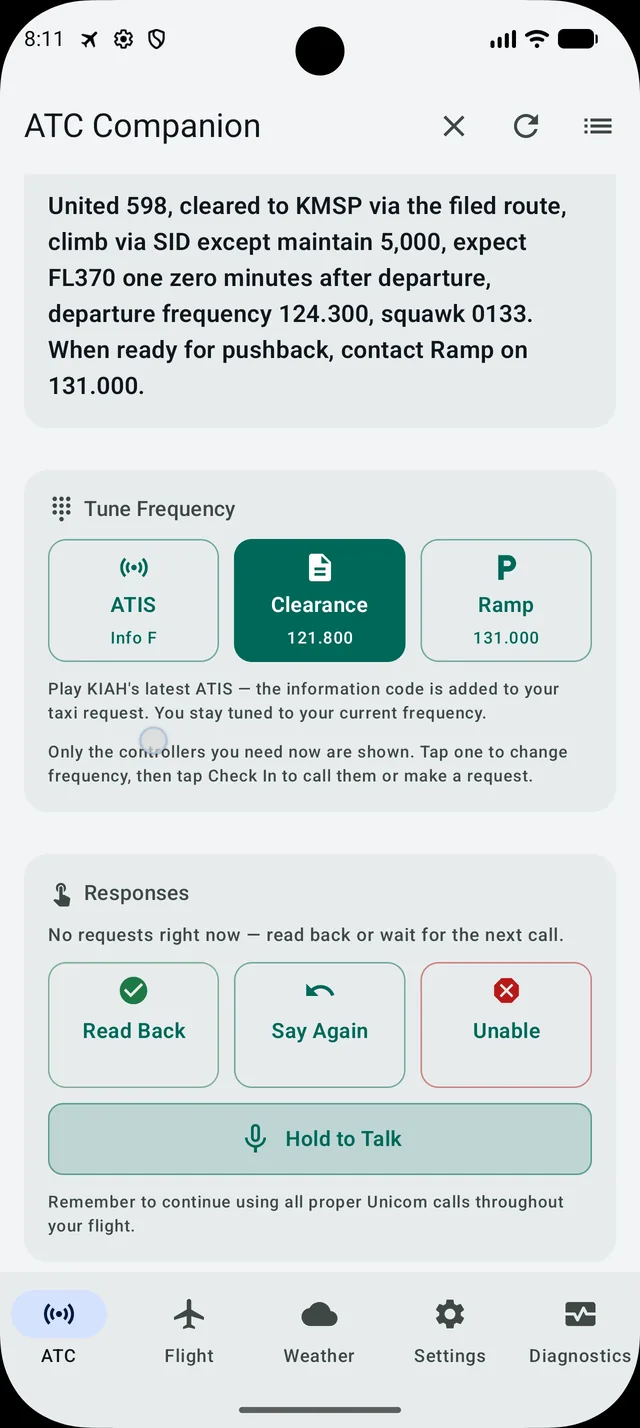
Responses. The requests that make sense right now, then the three acknowledgements that are always there — Read Back, Say Again, Unable — and Hold to Talk underneath, if you would rather speak your read-backs than tap them.
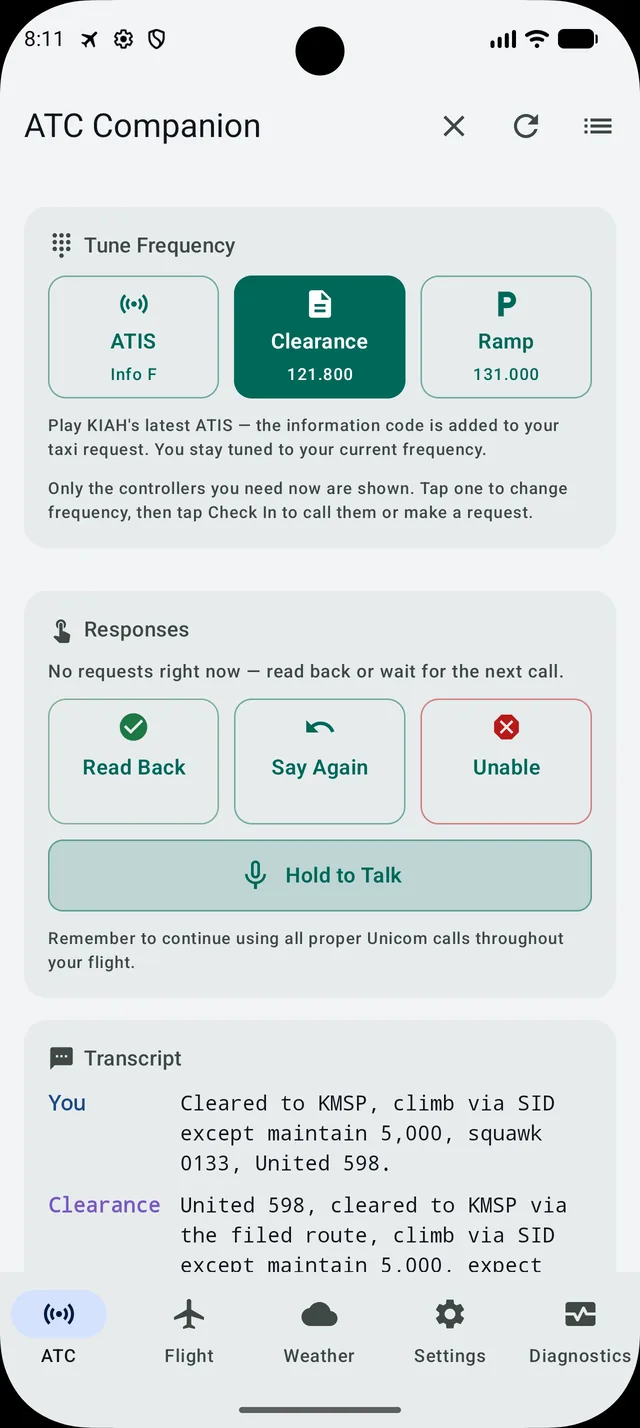
Transcript. The whole conversation, your calls tagged You and the controller’s tagged by position, so you can scroll back to anything you missed.
4 · Reference
Every button, and when it appears
The Responses card never shows every button at once. It shows the calls that are legal for the
controller you are working and the phase you are in — which is why, at the gate, there is
exactly one.
Clearance
At the gate, on Clearance Delivery, before you have an IFR clearance.
Pushback
On the Ramp frequency, after the clearance is read back. Tune to Ramp first — it is not offered on Clearance Delivery.
Engine Start
On Ramp, once pushback is approved. A separate call, as in the real world.
Taxi
Twice: once to tell Ramp the push is complete, then again on Ground to request taxi.
Ready
The manual way to the runway: calls Tower ready for departure. You need it only when the automated hand-off has not fired — at a field with no surface data behind it, for instance.
Takeoff
Offered while you are holding, if you would rather ask than wait for the clearance to fire on its own once you are lined up.
Check In
After a hand-off, on the new frequency. Yours to make, never automatic — the new controller says nothing until you do — and built from your live altitude and your assigned altitude.
Request Higher / Request Lower
En route, on Departure and Center. On the arrival only Request Lower is offered.
Ride Report
In the climb and at cruise. Answered from the composite ride-quality index.
Smoother Altitude
Appears only when a ride report has actually found a smoother level to offer.
Dest Wx
En route and on the arrival. Asks for the latest weather at your destination.
Vectors / Approach
On the arrival, once Approach is working you.
Go Around
Airborne, inbound to land, on the Tower frequency. Breaks off the approach.
To Gate
On the Ramp frequency after landing, once clear of the runway. Tune to Ramp first, as at the departure stand.
5 · The walkthrough
United 598, Houston to Minneapolis
Fourteen stages, in order. Each one shows what you tap, every transmission it produces, and what
the screen reads once it has settled — the phase, the frequency you are tuned to, the
buttons you are offered next, and the controllers on the Tune Frequency card.
How a hand-off works
The rule that shapes the whole flight: a new controller never speaks before you have called
it up. When the app hands you on, you get the hand-off and nothing else —
“United 598, contact Departure on 124.300” — and then silence until you tap
Check In. Your check-in is what brings the new controller in, and it answers with radar
contact and whatever it has for you next.
So the pattern at every hand-off is the same three beats: hand-off → your check-in
→ the controller’s instruction, and then your read-back of that instruction. The
check-in is built at the moment you tap it, from your live altitude and the altitude you were
last assigned, which is why it reports what you are actually passing.
Two hand-offs are answered with a read-back instead of a check-in, because they are not asking
you to call anyone: Ground telling you to monitor Tower before departure (stage 5), and
Approach’s “contact Tower” on the arrival, which rides along with the approach
clearance (stage 12).
In Mock Mode it plays a little differently. The free demo has no live telemetry to drive
a hand-off from, so it advances on your button presses instead, and the controllers do not wait
for your check-in the way they do here. Everything else — the wording, the order of the
stages, the buttons — is the same.
01
IFR clearance
At the gate · tuned to Clearance 121.800
Nothing happens until you call somebody. At the gate the Responses card offers exactly one request — Clearance — because that is the only call that makes sense before you have an IFR clearance. Tap it and Clearance Delivery answers with the whole thing: route, initial climb, the cruise level to expect, the departure frequency, your squawk, and who to call for pushback.
You tapClearanceRead Back
You121.800
Clearance, United 598, request IFR clearance to KMSP.
Clearance121.800
United 598, cleared to KMSP via the filed route, climb via SID except maintain 5,000, expect FL370 one zero minutes after departure, departure frequency 124.300, squawk 0133. When ready for pushback, contact Ramp on 131.000.
You121.800
Cleared to KMSP, climb via SID except maintain 5,000, squawk 0133, United 598.
Read it back. The read-back is not decoration — every substantive instruction closes a gate, and your read-back is what re-opens it and lets the flow move on. Tap Read Back and the app speaks it in your pilot voice. The moment it lands, Ramp appears on the Tune Frequency card.
Phase
Preflight
Tuned to
Clearance 121.800
Assigned
5,000 ft
Buttons offered nowNo requests right now — read back or wait for the next call.
Tune Frequency cardClearanceRamp
The ATC tab before the first call. Mock Mode is on in this screenshot, the flight plan reads KIAH, gate C12 to gate B44, and the phase is Preflight. Only Clearance is offered.The clearance, in full, with Read Back / Say Again / Unable underneath and Hold to Talk below them.The Transcript card keeps the whole conversation — your calls tagged You, the controller's tagged by position.
02
Pushback and engine start
Tuned to Ramp 131.000
Ramp is modelled as its own position, the way it works at a real hub — it is not ATC ground control, and it is the one that clears you off the stand. Tap Ramp on the Tune Frequency card first: with the clearance read back the Responses card has nothing left to offer, and Pushback appears only once you are on 131.000.
You tapRamp on the Tune Frequency cardPushbackEngine Start
You131.000
Ramp, United 598 at C12, ready to push.
Ramp131.000
United 598, pushback approved, advise ready to taxi.
You131.000
Pushback approved, United 598.
You131.000
Ramp, United 598, request engine start.
Ramp131.000
United 598, start approved.
You131.000
Start approved, United 598.
Engine Start is a separate call, as it is in the real world. Both instructions want a read-back before the next request will do anything.
Phase
Preflight
Tuned to
Ramp 131.000
Assigned
5,000 ft
Buttons offered nowEngine StartTaxi
Tune Frequency cardRampGround
03
Push complete, over to Ground
Ramp hands you to Ground 121.800
Tap Taxi once and you are telling Ramp the push is finished. Ramp does not clear you to taxi — it sends you to the movement-area boundary and hands you to Ground.
You tapTaxi (push complete)
You131.000
Ramp, United 598, push complete, ready to taxi.
Ramp131.000
United 598, proceed to the movement-area boundary, contact Ground 121.800.
You131.000
Proceed to the movement-area boundary, contact Ground 121.800, United 598.
Your read-back tunes the radio to Ground. That is the default (Settings → ATC Automation → Auto-tune on hand-off); turn it off and you change frequency yourself on the Tune Frequency card.
Phase
Preflight
Tuned to
Ground 121.800
Assigned
5,000 ft
Buttons offered nowTaxi
Tune Frequency cardGroundTower
04
Taxi clearance
Tuned to Ground 121.800
Tap Taxi a second time — now you are on Ground, and now it is a taxi request. Ground gives you the runway and the route to it.
You tapTaxi (request taxi from Ground)
You121.800
Ground, United 598, request taxi.
Ground121.800
United 598, taxi to runway 27 via A, E. Contact Tower when ready.
You121.800
Taxi to runway 27 via A, E, United 598.
This is where the taxi map animates in: your assigned route drawn from OpenStreetMap airport-surface data, your aircraft tracked along it, gates and hold-short positions marked, and runway crossings cleared as you come up on them. The route here reads “via A, E” because no surface geometry was loaded for this recording; with one, the live route supersedes it and names the field’s real taxiways.
Phase
Preflight
Tuned to
Ground 121.800
Assigned
5,000 ft
Buttons offered nowTaxi
Tune Frequency cardGroundTower
05
Monitor Tower, line up and wait
Ground hands you to Tower 118.300
From here to the runway you do not have to ask for anything. As you taxi within range of the runway, Ground moves you to Tower on its own — and note the word: monitor, not contact. You read it back and say nothing else. No check-in, no “ready for departure”; Tower already has you.
Ground121.800
United 598, monitor Tower on 118.300.
You118.300
Monitor Tower on 118.300, United 598.
Tower118.300
United 598, runway 27, line up and wait.
You118.300
Runway 27, line up and wait, United 598.
The state read-out below still shows Tower under Told to contact, and Check In stays
on the card, so you can call up if you would rather. It costs nothing: Tower answers “United 598,
roger, you’re number one for departure, runway 27” and the sequence carries on exactly as
it would have. What it will not do is bring your takeoff clearance forward — that still waits
until you are lined up.
This automated hand-off is driven off the field’s OpenStreetMap surface data — it is
the surface that knows how close to the runway you are. At a field with no surface behind it the
sequence does not fire, and you call Tower yourself with Ready, which is offered throughout.
(No surface geometry was loaded for this recording, which is why the taxi route above is the fallback
planner’s — see the note under the radio log for how the departure was captured anyway.)
Then, as you reach the hold-short, Tower speaks first with the line-up-and-wait. Note the phrase: it is line up and wait, never the retired “position and hold” — the phraseology engine blocks outdated and unsafe wording outright, and every takeoff and landing clearance names the runway.
Phase
Taxi Out
Tuned to
Tower 118.300
Told to contact
Tower
Assigned
5,000 ft
Altitude
0 ft
Groundspeed
12 kt
Buttons offered nowReadyTakeoffCheck In
Tune Frequency cardTower
06
Takeoff clearance
Tuned to Tower 118.300
Roll onto the runway and stop. The takeoff clearance is position-triggered and fires on its own once you are actually lined up and settled — a few seconds after the nose comes onto the centreline, not the instant it swings through. It carries the wind, the runway, your initial heading and your climb altitude.
Tower118.300
United 598, wind 270 at 8, runway 27, cleared for takeoff, fly heading 007, climb and maintain 5,000.
You118.300
Runway 27, cleared for takeoff, heading 007, climb and maintain 5,000, United 598.
Read it back and the taxi map retires itself — it has done its job.
Phase
Preflight
Tuned to
Tower 118.300
Assigned
5,000 ft
Altitude
0 ft
Groundspeed
0 kt
Buttons offered nowCheck In
Tune Frequency cardTowerDeparture
07
Departure
Tower hands you to Departure 124.300
The hand-off is held until roughly two thousand feet above the field, so it does not stack on top of the takeoff clearance while you are rotating. When it comes, it is the hand-off and nothing else: Departure says nothing until you call it up.
You tapCheck In with Departure
Tower118.300
United 598, contact Departure on 124.300.
You124.300
Departure, United 598, with you at 2,500 for 5,000.
Departure124.300
United 598, radar contact, climb and maintain FL180, resume own navigation, direct TBONE.
You124.300
Climb and maintain FL180, resume own navigation, direct TBONE, United 598.
So tap Check In. The call is built from your live state at the moment you tap it — the altitude you are passing and the altitude you were last assigned — and Departure answers with radar contact and your climb. Then read that back.
Departure takes you to the TRACON ceiling and hands you to Center a thousand feet below it — 17,000 ft for the FL180 ceiling this flight is set to — so there is room to check in and be cleared higher before the climb runs out of altitude.
You tapCheck In with Center
Departure124.300
United 598, contact Center on 132.450.
You132.450
Center, United 598, with you at 17,000 for FL180.
Center132.450
United 598, radar contact, climb and maintain FL370.
You132.450
Climb and maintain FL370, United 598.
Same shape as the last one: hand-off, your check-in, then Center. With Center sector hand-offs on (the default) and a real position behind the flight, the app knows which ARTCC you are actually in and names it — Houston Center to Fort Worth Center to Memphis Center — in the hand-off, your read-back and your check-in. This run uses a single generic Center so the transcript stays reproducible.
Level at FL370 the request grid grows: Ride Report and Dest Wx join the climb and descent requests, because they are the calls that make sense en route.
You tapRide ReportDest Wx
You132.450
United 598, any ride reports along our route?
You132.450
United 598, request latest KMSP weather.
Both are wired to the weather engine. A ride report is answered from the composite ride-quality index built from pilot reports, advisories and surface winds; if a smoother level exists, a Smoother Altitude button appears to accept it. If weather shows up on your route, ATC issues an advisory and a deviation flow opens — ask for twenty degrees right, get a heading and a rejoin point, report clear of weather, and be cleared back on course.
The descent clearance is held until you actually reach top of descent, rather than being issued early in the cruise. Because a STAR is filed, Center clears you to descend via it.
Descending through the terminal area, Center hands you to Approach — again, the hand-off alone. Check in, and Approach starts working you: down to the intercept altitude, with the approach to expect.
You tapCheck In with Approach
Center132.450
United 598, contact Approach on 119.700.
You119.700
Approach, United 598, with you at 12,000 for 11,000.
Approach119.700
United 598, descend and maintain 4,000, expect the ILS runway 30L approach.
You119.700
Down to 4,000, expecting the ILS runway 30L, United 598.
Approach119.700
United 598, cleared ILS RWY 30L approach.
Approach119.700
United 598, contact Tower on 118.300.
You118.300
Contacting Tower on 118.300, United 598.
The last forty miles are flown, not announced. Approach uses the approach procedure’s own published altitudes from your flight plan, brings the speed down the way a real sequence does, and calls turns before the fix with the lead distance scaled to your groundspeed. The clearance is built off real geometry — the final approach fix, an approach gate a mile outside it, and an intercept joining the localiser at no more than thirty degrees. If you are already lined up you are simply not vectored, which is why this run goes straight to the ILS clearance.
Phase
Approach
Tuned to
Tower 118.300
Told to contact
Tower
Assigned
4,000 ft
Altitude
4,000 ft
Groundspeed
240 kt
Buttons offered nowCheck InGo Around
Tune Frequency cardTower
12
Cleared to land
Approach hands you to Tower 118.300
Approach reverses the usual order on its way out: the instruction to contact Tower comes with the approach clearance, and the read-back gate is re-aimed at the hand-off, so your read-back is “contacting Tower”. Then check in, and Tower clears you to land.
You tapCheck In with Tower
You118.300
Tower, United 598, checking in.
Tower118.300
United 598, wind 270 at 8, runway 30L, cleared to land.
You118.300
Runway 30L, cleared to land, United 598.
Tower118.300
United 598, exit the runway when able, contact Ground on 121.800 once on the taxiway.
You118.300
Exiting the runway, contact Ground, United 598.
After touchdown Tower sends you off the runway and over to Ground.
Phase
Landing
Tuned to
Tower 118.300
Told to contact
Ground
Assigned
4,000 ft
Altitude
0 ft
Groundspeed
130 kt
Buttons offered nowCheck In
Tune Frequency cardTowerGround
13
Taxi in
Tower hands you to Ground 121.800
Once you are clear of the runway and down to taxi speed, check in with Ground and it gives you the route to your arrival gate — by name, because you filled in the Arr Gate field at the start.
You tapCheck In with Ground
You121.800
Ground, United 598, checking in.
Ground121.800
United 598, taxi to gate B44 via A.
You121.800
Taxi to gate B44 via A, United 598.
The taxi map comes back for the arrival and stays up all the way in.
Phase
Taxi In
Tuned to
Ground 121.800
Assigned
4,000 ft
Altitude
0 ft
Groundspeed
16 kt
Buttons offered nowCheck In
Tune Frequency cardGround
14
The gate
Ground hands you back to Ramp 131.000
Same move as at the departure stand: tap Ramp on the Tune Frequency card first — To Gate appears only once you are on 131.000 — then tap it to call Ramp inbound. From there the arrival is staged rather than dumped in one burst: Ramp clears you to the stand, tells you to monitor as you slow, and blocks you in once you have actually stopped with the brake set.
You tapRamp on the Tune Frequency cardTo Gate
You131.000
Ramp, United 598, inbound B44.
Ramp131.000
United 598, proceed to gate B44 via the ramp.
You131.000
Proceed to gate B44 via the ramp, United 598.
Ramp131.000
United 598, monitor ramp to the gate.
System131.000
United 598 parked at B44. Flight complete.
That last line is the System line that ends the flight. The header goes back to reading Preflight at that point: the flight is over, and the app is ready for the next one. From here Clear Flight resets the conversation, or you can save this flight from the Flights list and come back to it exactly as you left it.
Phase
Preflight
Tuned to
Ground 121.800
Assigned
4,000 ft
Altitude
0 ft
Groundspeed
0 kt
Buttons offered nowNo requests right now — read back or wait for the next call.
Tune Frequency cardGround
6 · The whole conversation
The complete radio log
All 53 transmissions of the flight above, in order, with the frequency each one was made on.
Your calls are the shaded rows.
Every transmission of the United 598 demo flight, in order
#
Who
Freq
Transmission
1
You
121.800
Clearance, United 598, request IFR clearance to KMSP.
2
Clearance
121.800
United 598, cleared to KMSP via the filed route, climb via SID except maintain 5,000, expect FL370 one zero minutes after departure, departure frequency 124.300, squawk 0133. When ready for pushback, contact Ramp on 131.000.
3
You
121.800
Cleared to KMSP, climb via SID except maintain 5,000, squawk 0133, United 598.
4
You
131.000
Ramp, United 598 at C12, ready to push.
5
Ramp
131.000
United 598, pushback approved, advise ready to taxi.
6
You
131.000
Pushback approved, United 598.
7
You
131.000
Ramp, United 598, request engine start.
8
Ramp
131.000
United 598, start approved.
9
You
131.000
Start approved, United 598.
10
You
131.000
Ramp, United 598, push complete, ready to taxi.
11
Ramp
131.000
United 598, proceed to the movement-area boundary, contact Ground 121.800.
12
You
131.000
Proceed to the movement-area boundary, contact Ground 121.800, United 598.
13
You
121.800
Ground, United 598, request taxi.
14
Ground
121.800
United 598, taxi to runway 27 via A, E. Contact Tower when ready.
15
You
121.800
Taxi to runway 27 via A, E, United 598.
16
Ground
121.800
United 598, monitor Tower on 118.300.
17
You
118.300
Monitor Tower on 118.300, United 598.
18
Tower
118.300
United 598, runway 27, line up and wait.
19
You
118.300
Runway 27, line up and wait, United 598.
20
Tower
118.300
United 598, wind 270 at 8, runway 27, cleared for takeoff, fly heading 007, climb and maintain 5,000.
21
You
118.300
Runway 27, cleared for takeoff, heading 007, climb and maintain 5,000, United 598.
22
Tower
118.300
United 598, contact Departure on 124.300.
23
You
124.300
Departure, United 598, with you at 2,500 for 5,000.
24
Departure
124.300
United 598, radar contact, climb and maintain FL180, resume own navigation, direct TBONE.
25
You
124.300
Climb and maintain FL180, resume own navigation, direct TBONE, United 598.
26
Departure
124.300
United 598, contact Center on 132.450.
27
You
132.450
Center, United 598, with you at 17,000 for FL180.
28
Center
132.450
United 598, radar contact, climb and maintain FL370.
29
You
132.450
Climb and maintain FL370, United 598.
30
You
132.450
United 598, any ride reports along our route?
31
You
132.450
United 598, request latest KMSP weather.
32
Center
132.450
United 598, descend via the KKILR arrival.
33
You
132.450
Descend via the KKILR arrival, United 598.
34
Center
132.450
United 598, contact Approach on 119.700.
35
You
119.700
Approach, United 598, with you at 12,000 for 11,000.
36
Approach
119.700
United 598, descend and maintain 4,000, expect the ILS runway 30L approach.
37
You
119.700
Down to 4,000, expecting the ILS runway 30L, United 598.
38
Approach
119.700
United 598, cleared ILS RWY 30L approach.
39
Approach
119.700
United 598, contact Tower on 118.300.
40
You
118.300
Contacting Tower on 118.300, United 598.
41
You
118.300
Tower, United 598, checking in.
42
Tower
118.300
United 598, wind 270 at 8, runway 30L, cleared to land.
43
You
118.300
Runway 30L, cleared to land, United 598.
44
Tower
118.300
United 598, exit the runway when able, contact Ground on 121.800 once on the taxiway.
45
You
118.300
Exiting the runway, contact Ground, United 598.
46
You
121.800
Ground, United 598, checking in.
47
Ground
121.800
United 598, taxi to gate B44 via A.
48
You
121.800
Taxi to gate B44 via A, United 598.
49
You
131.000
Ramp, United 598, inbound B44.
50
Ramp
131.000
United 598, proceed to gate B44 via the ramp.
51
You
131.000
Proceed to gate B44 via the ramp, United 598.
52
Ramp
131.000
United 598, monitor ramp to the gate.
53
System
131.000
United 598 parked at B44. Flight complete.
Where this came from. The transcript above was produced by running IFATC Companion’s
ATC engine through the flight and recording what it said — the pilot calls, the controller
calls, the frequencies and the button states at each step. It is output, not copy. The engine was
set to run as a connected flight rather than as the demo — that is the switch that makes
every controller wait to be called up — and the aircraft’s positions were fed in as
telemetry, the way Infinite Flight feeds them. The free Mock Mode demo advances on your button
presses instead, as the note at the top of the walkthrough says.
Two things in it are this run’s defaults rather than a real one’s.
The taxi routes (“via A, E”) come from the deterministic fallback planner, because no
OpenStreetMap surface is loaded behind it; with a real surface the live route supersedes
them and names the field’s actual taxiways. And the wind is the no-report default, 270 at 8
— which is also what the runway in use is picked from, so KIAH’s most into-wind runway
for a 270 wind is 27. With a live METAR both follow the real weather.
One thing was supplied rather than recorded. Stage 5’s automated departure is triggered by
four facts the airport surface reports — whether the loaded surface is the departure
field’s, whether the aircraft is within monitor-Tower range of the runway, whether it has
reached the hold-short, and whether a clearance is still unanswered. No surface geometry was
loaded here, so those four were handed to the engine directly, at the points a real surface
would have reported them. What was supplied is the aircraft’s position relative to the
runway; every word that follows from it is the engine’s own.
7 · The rest of it
Beyond the walkthrough
Those fourteen stages are the spine of the app. These are the parts that come in around them once
you are flying a real route against a live Infinite Flight session.
Real-world ATIS. At the gate you can tune the departure airport’s ATIS and hear the current broadcast; within 100 NM of your destination the arrival ATIS becomes available too. The information code you hear is remembered and added to your taxi request and your arrival check-in, exactly as in real life. At US airports that publish it you get the real FAA Digital ATIS; everywhere else you get an automated broadcast built from that airport’s current NOAA METAR, which announces itself on the air as an automated observation. Where a field has neither, the feature simply does not appear.
The taxi map. After you read back your taxi clearance, a map animates in showing your assigned route, your aircraft, gates, hold-short positions and upcoming runway crossings, drawn from OpenStreetMap airport-surface data. Crossings are cleared a generous distance ahead of the runway as their own clearance you read back, so you are never left holding short. The map stays up through the hand-off to Tower and retires when you read back the line-up-and-wait; on arrival it comes back and stays up all the way to the gate.
Push-to-talk. Hold the button and speak your read-back or request instead of tapping it. Recognition runs entirely on your device, and a spoken read-back goes through the same code path as the button — there is no second flow.
Weather deviations. When weather is detected along your route ATC gives an advisory, and you can request a deviation, get a suggested heading and a rejoin point, report clear of weather and be cleared back on course. Simulated, for immersion.
Background radio and the live notification. Optional quiet, static-wrapped ambient chatter on your tuned frequency — which also keeps the app alive in the background so live calls do not stall when you switch apps or lock the screen. The live flight notification puts a card on your Lock Screen with Read Back and Check In on it. Both are off by default and both use more battery.
Saved flights. Save a flight from the Flights list at the top right of the ATC tab and load it back whenever you like — transcript, clearances, tuned frequency, flight plan, gates and callsign, exactly as you left it. Flights are named for their route, and the one you are flying keeps itself up to date.
It stands aside for real controllers. When a human controller is staffing your airport on a multiplayer server, the app detects it and stands by, so it never talks over the real thing.
Resume on reconnect. If Wi‑Fi drops or you relaunch the app, the flight and the conversation pick up where they left off.
8 · Web Remote
Flying the radio from a browser
Web Remote moves the ATC screen to a web browser on a laptop, a Chromebook or a second tablet, so
Infinite Flight can keep the whole screen of the device it runs on. The app goes on doing everything
it does now — the ATC engine, the voices, the radio and the connection to Infinite Flight
— and the browser shows the ATC panel, the maps, the ATIS and the flight, with every button the
ATC screen has. All audio stays on the phone or tablet. The browser is a control panel, not a
second radio.
What you need
Live Connected Mode (monthly, annual or lifetime) — there is no separate purchase and no
account. With Live Connected Mode access it also works in Mock Mode, which is the easiest way
to try it out; free Mock Mode on its own does not include Web Remote. You need
a modern browser on the second device, and both devices need an internet connection, because the
two are paired through our relay at web.ifatccompanion.com.
One device or two
Web Remote never changes your Infinite Flight address. If Infinite Flight is on another device,
leave the connection as it is. If it runs on the same phone or tablet as the companion,
tap Infinite Flight is on this device — use 127.0.0.1 in the Web Remote rows, which
points the app at the sim on that device and turns auto-discover off.
Not the same as Background Mode
Background Mode makes every call for you with nobody at the controls. Web Remote waits for you
to press the button in the browser. The two cannot both be on: turning one on turns the other
off.
Pairing the browser
Turn on Web Remote Mode
In the app, open Settings → Infinite Flight Connection and switch on Web Remote
Mode, directly under Background Mode. Without Live access the paywall opens instead. The rows
underneath show a six-character Session Code, such as K7F-29Q, with a Copy
button and the address to open.
Open the dashboard and enter the code
In a browser on the other device, go to
web.ifatccompanion.com,
type the code (capitals, spaces and the hyphen do not matter) and press Connect. There is
nothing to sign up for.
Check both ends
The browser’s top bar reads Connected and the dashboard fills in. In the app, the status
line changes from Waiting for browser to Browser Connected, followed by the browser
and operating system it reported.
Switch to Infinite Flight
Bring Infinite Flight to the front and leave the companion running behind it. While the mode is on,
the app turns on background chatter and the live flight notification (Live Activity on iOS),
because they are what keep it alive behind the sim. Your own settings for both come back the
moment you turn Web Remote off. The notification shows the code and whether the browser is
connected, so you can check without leaving the sim.
The dashboard
Top bar
Callsign, aircraft, route and phase; the connection status; the frequency you are tuned to; and the menu.
ATC / Radio
The controller you are working, who is next on a hand-off, the instruction in force, Read Back, Say Again, Unable, the request buttons and the frequency grid — the same ones the app shows, in the same order.
ATIS & Weather
Departure and arrival ATIS with the information letter and its source, the METARs at both ends, and the button that tunes ATIS.
Flight Info
Altitude, ground speed, heading, vertical speed, next fix, runway and phase, and squawk, approach and gates when they apply.
Weather / Route
Your route and live position, with radar over the US, a NASA satellite estimate elsewhere, and the weather hazards the deviation flow is working from.
Taxi Map
The app’s taxi route, hold-shorts and your aircraft, drawn over the airport diagram from OpenStreetMap.
Transcript
The whole conversation, newest at the bottom, your calls tagged You.
The layout follows the flight. On the ground the taxi map is the large map, in the air the route map takes over, ATIS moves up at the gate, and the ATC panel stands out on the approach and whenever a read-back is owed.
Arrange it how you like. On a wide screen, drag the dividers to resize the columns and maps (they work from the keyboard too), use the expand control to give a map the whole window, and hide the second map when you do not need it. The browser remembers your panel sizes. On a narrow screen everything stacks with ATC at the top.
The menu (top right) has Web Display Settings, Web Connection Diagnostics, Full screen, About / Attribution, Privacy and Disconnect this browser.
Web Display Settings change only how the dashboard looks: theme (match system, dark or light), density, route map zoom, whether the maps follow the aircraft, the precipitation overlay, the relief imagery and the transcript. They are stored in that browser only and never change anything in the app.
Flying with it
A press in the browser is a press in the app. Every button runs the same code as the matching button on the ATC screen, so the walkthrough above reads exactly the same from the browser. The read-back rules still apply, and so does the standby when a human controller is staffing your airport.
Buttons only work while they are on screen. If the flight has moved on by the time your press arrives — the button has already gone from the app’s screen — the app refuses it and the dashboard tells you why. Nothing runs twice, even if the connection blinks and the press is sent again.
You hear everything on the phone. Tune ATIS from the browser and the broadcast plays on the phone, then appears in the transcript. The browser makes no sound.
Some things stay on the phone: push-to-talk, Replay, voices and every other app setting, loading and deleting saved flights, entering the flight plan, SimBrief, and your subscription. Save & Clear and Clear Flight are on the dashboard; Clear Flight asks you to confirm first.
Mock Mode is labelled. A banner says when the app is flying its built-in demo flight rather than Infinite Flight.
What the status line is telling you
Connected
All good: the browser and the app are both on the relay.
Waiting for Native App
The browser is ready but the app is not on the relay. Open IFATC Companion and keep Web Remote Mode on.
Mobile app disconnected
The app has dropped off. The dashboard keeps showing the last state, with the controls disabled until the app reconnects.
Reconnecting
The browser’s own connection dropped and it is retrying. It rejoins the same session on its own, and so does a page refresh.
Open in another tab
The same session was opened in a second tab or window. Press Use this window instead to control it from this one.
Update required
The page and the app speak different Web Remote versions. Press Reload; if it persists, update the app.
Ending a session
Turn Web Remote Mode off in the app (or press Stop on the Android notification). The session ends at once and the browser goes back to the code screen, saying the mode was turned off in the app.
Disconnect this browser, from the dashboard menu, makes that browser forget the session. Codes work only once, so to connect again tap Start a New Session in the app and enter the new code.
Start a New Session in the app always issues a fresh code and drops whichever browser held the old one.
Sessions also end on their own after an hour with nothing happening, after 24 hours at most, or if Live access lapses. The browser shows the reason. If the relay restarts, the app opens a new session at once and the new code appears in Settings with a note explaining why it changed.
It is off again at every launch. Opening a session to the internet is something you choose each time, so the app never remembers the switch.
What leaves the phone
While Web Remote is on, the app sends the dashboard its simulated flight’s state — callsign,
aircraft, airports, position and altitude, the ATC wording, the route, the taxi route and the
ATIS/METAR text — through our relay, which forwards it to your browser and keeps none of it. No
audio, no account and no purchase details are ever sent. The full detail is in the
Privacy Policy.
9 · If something looks wrong
Troubleshooting & FAQ
Nothing happens when I tap a request
Almost always a read-back that is still outstanding. Every substantive instruction closes a gate, and your read-back is what re-opens it — until then, the request grid shows “No requests right now — read back or wait for the next call.” Tap Read Back and the flow moves on.
The controller I need is not on the Tune Frequency card
The card shows only the controllers that apply right now — typically the one you are working and the one ahead of you. If the one you want is missing, you are not at the point in the flight where that call is made yet.
I changed frequency myself and now nothing is automatic
That is intended. Once you start tuning by hand, the flow waits for you to make each frequency change rather than doing it for you. Turn Auto-tune on hand-off back on in Settings → ATC Automation if you would rather your read-back tuned the radio.
The app cannot find Infinite Flight
Check that Infinite Flight Connect is enabled in Infinite Flight’s own Settings → General, that both devices are on the same Wi‑Fi network, and that the port is 10112. Leave auto-discover on and the app will keep looking for the iPad’s current address on its own. The Diagnostics tab shows the live connection status.
ATC has gone quiet mid-flight
If a human controller is staffing your airport on a multiplayer server, the companion stands by on purpose so it does not talk over them. Diagnostics tells you when that is what is happening.
No ATIS at my airport
There are two sources and the app always tells you which one you have: the real FAA Digital ATIS at US fields that publish it, and an automated broadcast built from the airport’s current NOAA METAR everywhere else. Where a field has neither, the ATIS button simply does not appear and nothing is added to your calls.
Do I need a subscription to try it?
No. Mock Mode is free and never requires a purchase, and it flies this same route with the same phraseology, so you can hear how the app sounds before deciding anything. Two things differ from the walkthrough above, which is a connected flight: the demo advances on your button presses rather than on where your aircraft actually is, and its controllers do not wait for your check-in before speaking. So you will hear the same calls, but some of them in a different order, and the automated departure in stage 5 needs a live position to trigger from. A subscription or the one-time lifetime unlock covers Live Connected Mode, the part that connects to your real Infinite Flight session.
The Web Remote code is not accepted
A code works once and lasts five minutes. If it has been used, or has run out, the app shows a new one in Settings → Infinite Flight Connection; if not, tap Start a New Session there and use the new code. Capitals, spaces and the hyphen do not matter. After several wrong codes in a row the page asks you to wait a minute before trying again.
The dashboard says “Mobile app disconnected”
The app has lost its connection to the relay or been closed in the background. Bring IFATC Companion back to the front and check that Web Remote Mode is still on; the dashboard picks up again on its own, with no new code needed. Keeping the live notification or Live Activity on, which Web Remote does for you, is what keeps the app running behind Infinite Flight.
The browser makes no sound
That is by design. Every voice, the radio effect and the chatter play on the phone or tablet running the app. The browser only shows and presses.
The taxi map in the browser has no airport drawn under it
The browser fetches the airport diagram from OpenStreetMap itself, and occasionally that service is busy or refuses the request. The taxi map then says the diagram could not be loaded, but still draws the app’s route, the hold-shorts and your aircraft, and the taxi flow carries on as normal.
Is any of this usable for real-world flying?
No. IFATC Companion is for flight simulation only. It is not a real air traffic control service, not a flight-planning tool, and must never be used for real-world aviation.
Stuck on something this guide does not cover?
We read every message and we’re happy to help — support comes straight from the people who built it.